![AEM_Logo_Gradient_CMYK.jpg]](https://helpcenter.aem-test.com/hs-fs/hubfs/Logos%20Headers%20Templates/AEM_Logo_Gradient_CMYK.jpg?width=50&height=50&name=AEM_Logo_Gradient_CMYK.jpg)
This article describes the processes used to import custom test limits on your TestPro CV100 Multifunction Cable Certifier. The example is for a copper test limit; other limits may also be imported. If you need assistance creating custom limits, please email customercare@aem-test.com. Please ensure your TestPro Main and Remote are updated to the latest firmware. For information on updating, please see KB32 Updating TestPro/NSA Firmware and TestDataPro PC Software.
Instructions for importing a custom limit to TestPro
- Save the .csv limit file into a folder on your computer which is titled as you want to have it appear in the Vendor limits folder on the TestPro. In the example shown, there is a main folder titled “Custom Limit”, there is a sub-folder titled “01 A Steve Custom Limit”. Opening this sub-folder shows the custom limit file titled “Steve – 1000Base-T”. Once you have this file in the folder as shown, it can be imported to the TestPro using TestDataPro PC Software. In the example, only one limit is in folder, but you could have more than one if you need to import multiple custom limits in the same folder.
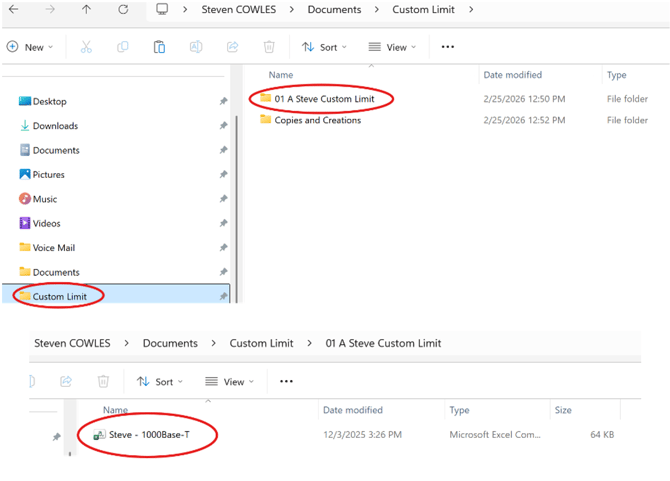
- Next, open the TestDataPro application on your computer.
- Power up your TestPro Main unit and then connect it to your computer using the Micro USB port on the side of the device and the supplied cable which is Micro USB to USB-A. If your computer does not have a USB-A connection, you will need an adapter to convert the USB-A connector on the cable to USB-C in order to connect to the computer.
- In TestDataPro application, click on the Tools tab at the top.
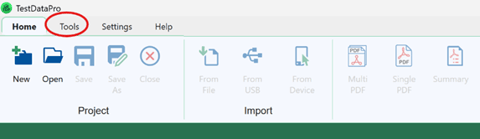
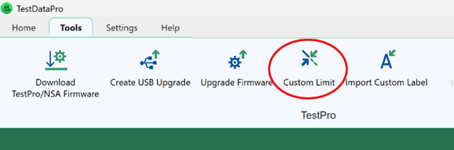
- In the Tools tab, click on Custom Limit.
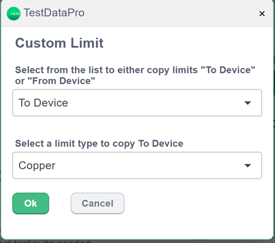
- From the popup dialog box for Custom Limit, there are two dropdown options. “To Device” is correct. In the example, we are importing a copper limit, so we will leave this at the default “Copper”. Click the green Ok button.
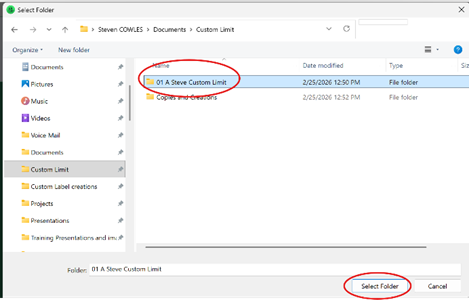
- When the files navigation window appears, navigate to the main folder which contains your subfolder with the custom limit and select the folder containing the limit. Once the folder is selected it will be highlighted as shown below, then click the Select Folder button.
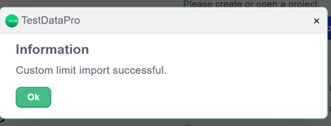
- A dialog box will appear indicating that the custom limit import was successful.
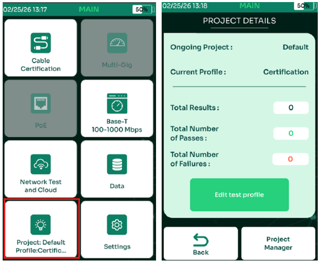
- To change the limit on the TestPro to the newly imported custom limit, click the Project button in the lower left corner of the home screen, which takes you to the Project Details screen. If you are not already in the project you need, click on Project Manager button in lower right and select the project you wish to update if already created (or create the project if it is a new one), then click the Back button to return to Project Details screen.
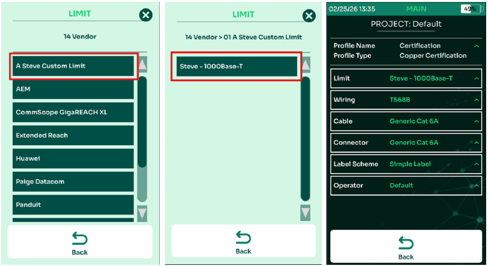
- Click the green “Edit test profile” button, then click on “Limit”. On the LIMIT screen you will see the various folders of available limits, use the scroll bar or scroll arrow to scroll down toward the bottom of the list and select the “Vendor” folder.
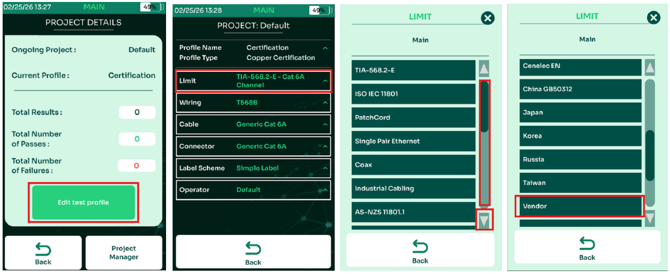
- In the “Vendor” folder, select your newly imported folder, note in my example the folder is at the top of the list of folders, but it is based on the alphanumeric sorting, you may need to scroll down to find your folder. Next, select the limit you want to use, in this example there is only one. After selecting the limit, you will be automatically returned to the Project screen which displays all of your settings. If needed, change your Wiring, Cable, Connector, Label Scheme or Operator information. The TestPro is now ready to test using the custom limit.
To download a PDF of this article, click the link below.
KB40-A How to Import Custom Test Limits on TestPro
Related article:
KB40-B How to Import Custom Test Limits on Network Service Assistant (NSA)